Seerr
Seerr is a free and open source software application for managing requests for your media library.
Table of contents
Signing In via Web Browser
- Launch the App: From your My applications dashboard, click the Seerr tile, or navigate directly to your Seerr web address in your browser.
- Pangolin Authentication:
- On first launch it’ll redirect you and ask you to continue.
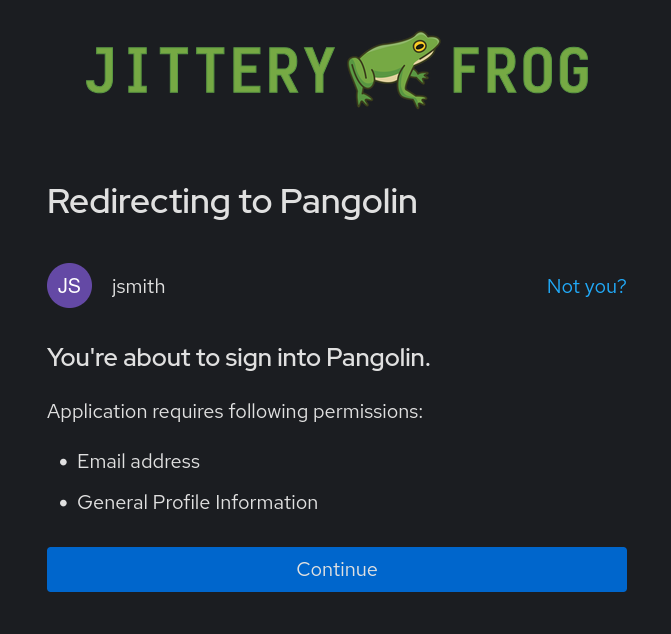
- Every subsequent launch after that will redirect you to Seerr automatically.
- If you ever land at the Pangolin login page, please follow the steps in Pangolin.
- Sign In to Seerr: Once past Pangolin, select Sign In and log in using your account credentials.
- Browse & Request: Use the search bar or discovery categories to find movies and TV shows, then click Request to submit titles for automatic downloading.
Signing In via Mobile Web / Progressive Web App (PWA)
- Navigate to URL: Open your mobile browser (Safari, Chrome, etc.) and go to your Seerr web address.
- Authenticate: Complete the Pangolin login prompt first, then sign in with your Seerr user account.
- Install to Home Screen (Optional):
- iOS (Safari): Tap the Share icon at the bottom and select Add to Home Screen.
-
Android (Chrome): Tap the three dots menu in the top right and select Add to Home screen or Install app.
- Access Anytime: Launch Seerr directly from your home screen like a native app without re-typing the web address.